Update 2.2.1
2.2.1: quests you can see, and a UI that fits your phone
Quests and hunts on the leaderboard, quest rewards in about a second, a phone-friendly in-game UI, chat mute and safer 1v1 requests.
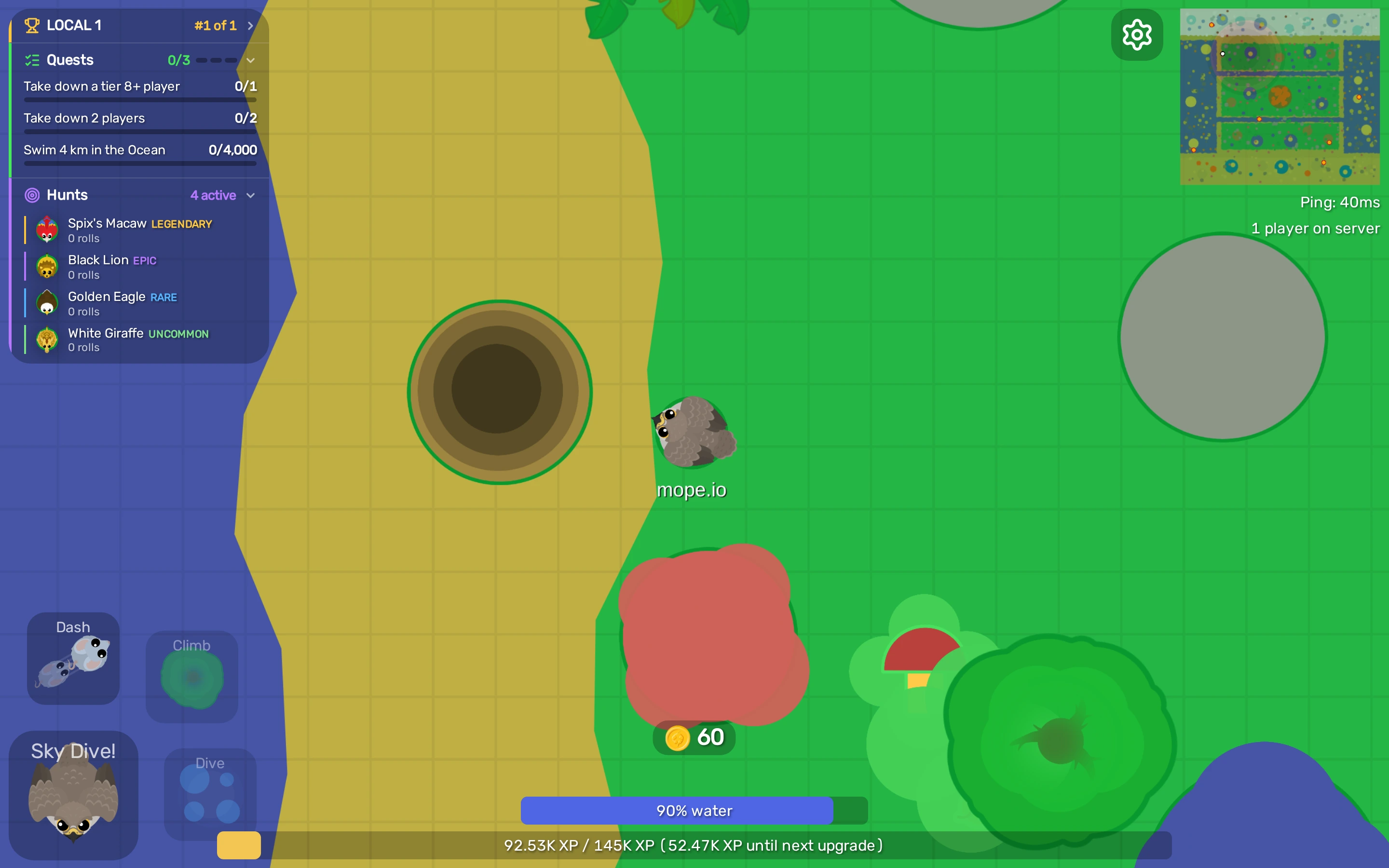
Thanks for the feedback on quests and achievements. In 2.2.1, you can see quests during a game, and quest and achievement rewards show up sooner. We also reworked the in-game UI to fit better on phones.
Quests and hunts in the leaderboard
The leaderboard now has three sections (Leaderboard, Quests and Hunts). Tap a title to open or close it. You can keep two open at once on a computer, or one at a time on a phone. A closed section still shows your rank, how many daily quests you’ve done, or how many hunts you have going.
When you finish a quest or unlock an achievement, the reward card at the top of the screen shows up in about a second.
Playing on mobile
On phones, 1v1 requests now appear in a thin strip at the top of the screen. Opening chat shows the last few messages there too.
You can switch to a fixed joystick in Settings > Game and adjust its opacity and dead zone. A mouse and keyboard plugged into a phone or tablet now work like on a computer. If you play in an Android browser, the menu links to the mope.io app.
How we got to this layout
We mocked up six layouts for the phone UI and chose C3.
A: quests and hunts as round badges under the leaderboard.
B: everything in one bar along the top.
C: one box with tabs for the leaderboard, quests and hunts.
C1: the same box with your rank and counts on the tabs.
C2: quest and hunt chips under the leaderboard.
C3: Quests and Hunts as sections you open and close. This is the one in 2.2.1.
On the death screen
The death screen shows how much XP you needed for the next tier and which animals it unlocks. The Continue button tells you which tier you’ll respawn at. Signed-in players also see the animals they added to their bestiary during that life.
If you’re playing without an account, your best XP and longest life are saved on your device. The death screen tells you when you beat them.
Muting chat
On a computer, the leaderboard box has a Chat section with the last few messages. Hit the mute button next to a message to hide that player’s chat until you leave the server. You can also hide other players’ chat by turning off Show Chat in Settings > Game.
1v1 changes
- Incoming 1v1 requests wait until you haven’t been hit for 5 seconds.
- You get a notice when someone declines your request.
- With Hold to Accept enabled in Settings > Arena, you hold the button down to accept a 1v1.
- Block this player on a request hides that player’s requests until you leave the server. To hide all requests, enable Block 1v1 Requests in Settings > Arena. You can still send your own.
- The end game starts 75 seconds after the final zone closes, up from 45. The wall burns twice as hard.
Bugs and balance
- A King Dragon stays the same size on screen as it grows. The camera zooms out, so a bigger King Dragon sees more.
- Fixed a Black Dragon apex exploit.
- A Tiger that grabs while crouching no longer dashes and drags its prey across the map.
- See-through animals (in a 1v1, under a bush or flying) no longer show their tail through their body.
- Animals moving off the edge of your screen no longer vanish before they’re out of view.
- On CrazyGames, accepting an invite during a match now joins the right server, and the Disable chat setting turns chat off.
Night of the Mope is over, and the jack-o’-lanterns are back to regular pumpkins. Thanks to everyone who played the event and sent in bug reports this week. See you in game.